Move Patient (formerly known as Internal Transfer) moves a patient between wards, rooms, or beds within the same facility. Use it when clinical needs change or for bed management. In MediRecords, moves are initiated from the Admissions Grid and are fully audited for compliance and traceability.
Contents:
Pre-Requisites
Before you can use Move Patient, the following must be true:
- The patient's status is Admitted, Ready for Discharge, or Emergency. Move Patient is not available for any other status.
- Your organisation's role and permission settings grant you transfer privileges. If you do not see Move Patient in the Actions menu, contact your Practice Owner user to review your permissions.
Common scenarios for Moving a Patient
- Clinical escalation or step-down (e.g., closer observation or transfer to a standard ward)
- Isolation or infection control (e.g., moving to or from a single room)
- Bed management (e.g., maintenance closures, balancing capacity across wards)
- Room/bed suitability (e.g., equipment needs, gender-based allocation, patient preference aligned with policy)
Moving a Patient
- Open the Admissions Grid.
- Locate the patient.
- Click the ... ellipses icon beside the patient in the grid
- Select Move Patient to open the form.
Move Patient form fields
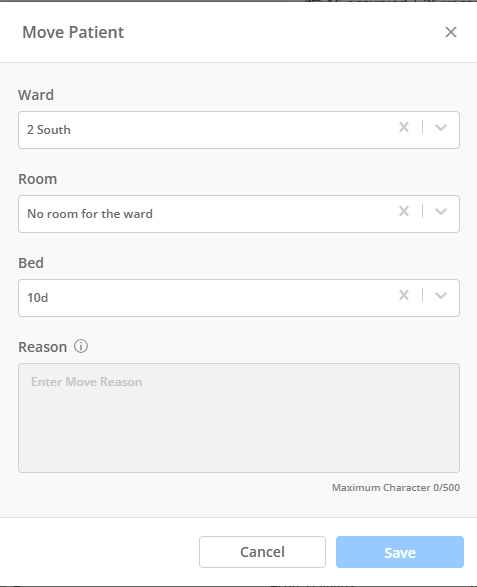
Ward (Optional Field)
- Displays the patient's current ward.
- Select from all wards within the facility.
- Some wards may not have rooms assigned. If so, the system displays: "No room for the ward".
Room (Optional Field)
- Displays the patient's current room.
- Select from available rooms in the facility.
- Some rooms may not be linked to a ward. If no ward applies, the system displays: "No ward for the room".
Bed (Mandatory Field)
- Displays the patient's current bed.
- You must select a bed to proceed, and only available beds can be selected. Occupied beds appear disabled.
- Beds are listed based on the selected ward or room.
- If left blank, the system displays: "Field is required".
Reason (Mandatory when changes are made)
- Activated only when Ward, Room, or Bed is changed.
- Maximum 500 characters.
- Used to record why the move is occurring.
- Tooltip reminder: Required when Ward, Room or Bed is changed.
Save and confirmation
- The Save button is enabled only when at least one of Ward, Room, or Bed has changed and a Reason is entered.
After saving:
- The patient's location is updated in the Admissions Grid.
- A confirmation message appears: "Patient has been successfully moved".
Audit tracking
All patient moves are logged for compliance. The audit record includes:
- Date and time of the move
- User who performed the move
- Previous and new Ward, Room, and Bed
- Move reason
Troubleshooting
- Move Patient option not visible: Verify patient status is Admitted, Ready for Discharge, or Emergency, and confirm your permissions with your administrator.
- "No room for the ward": The selected ward has no rooms configured. Choose a different ward or select a bed directly if available for the ward.
- "No ward for the room": The selected room is not linked to a ward. Either pick a ward first or proceed by selecting an available bed for that room.
- "Field is required" on Bed: A bed must be selected to complete any move.
- Save button disabled: Ensure you changed at least one of Ward, Room, or Bed and entered a Reason.
Still need help?
If this article did not fully answer your question, our Support team is here to help. We can assist with troubleshooting, guidance, or clarifying how MediRecords works.
Contact MediRecords Support
Phone: 1300 103 903
Email:
support@medirecords.com
Live chat: Available directly within the MediRecords app or via
the Knowledge Base
Want to build confidence using MediRecords?
We offer tailored software training for individuals and teams, whether you need help with specific workflows or a broader overview of the platform.
To enquire about training, contact your Customer Success Manager or email success@medirecords.com.
Comments
0 comments